Set up, operate, and troubleshoot every part of Connectail
Search the guides below. Each answer follows the order you see inside the workspace.
No matching guide was found. Try fewer words.
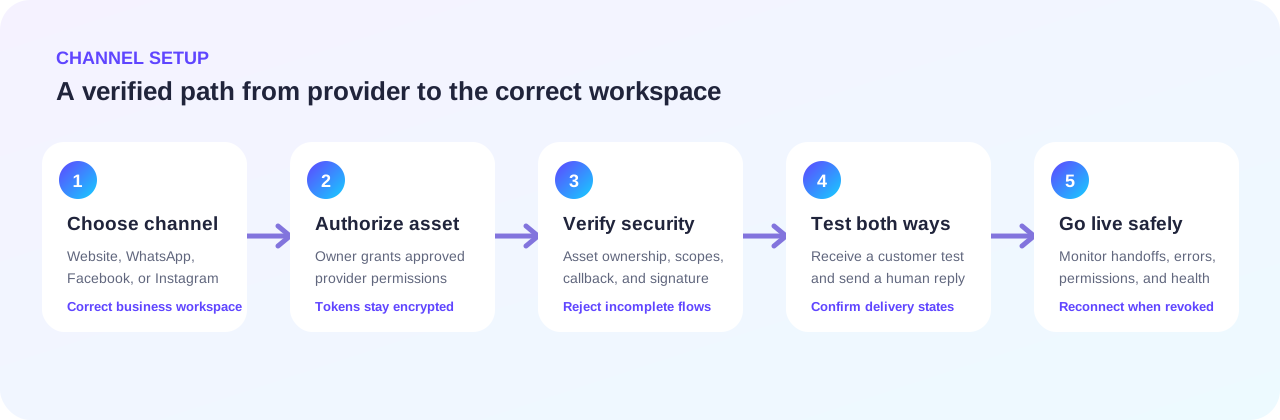
Connect a customer channel
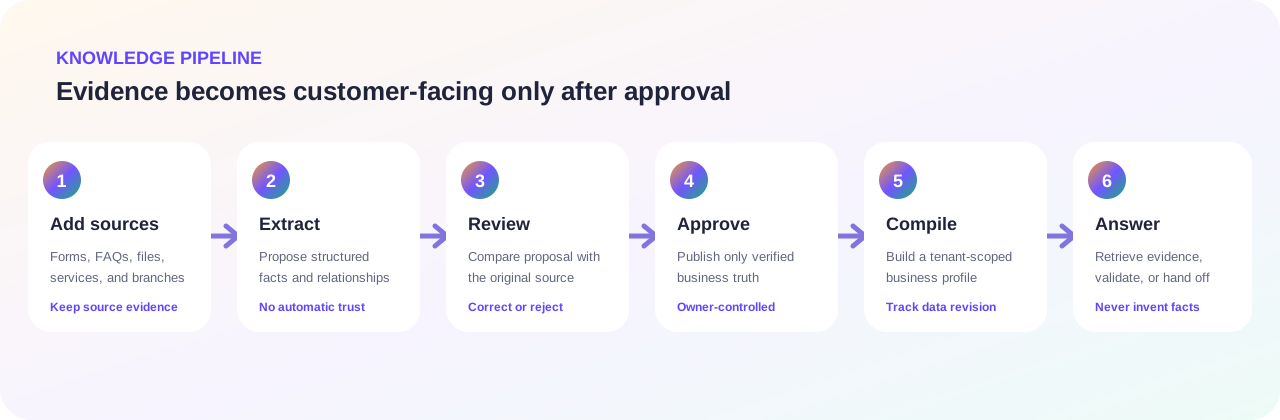
Turn business information into approved answers
Getting started
Create the workspace and understand the main screens.
How do I create a Connectail workspace?
- Choose a plan on the Pricing page.
- Enter the owner’s name, business email, phone, business name, industry, and password.
- Open and read the Terms and Privacy Policy.
- Tick the mandatory acceptance checkbox. Connectail records the document versions, time, IP address, and browser evidence.
- Start the guided setup without payment. Provider-backed setup features are available for exactly 24 hours from signup.
- Follow the verified journey: business identity, branches and hours, Knowledge, Services & slots, Channels, rehearsal, and paid go-live.
What should I configure before allowing customers to chat?
- Complete Business settings and public contact details.
- Create every active branch and its working hours.
- Create services, prices, duration, booking rules, branch availability, and offers.
- Add eligible staff and their service and branch assignments.
- Add or upload business knowledge, review it, and approve it.
- Test enquiries, availability, booking, corrections, cancellation, and handoff in the website channel.
- Only then connect live social channels.
What does the Today page show?
Today summarizes conversations needing attention, appointments, new leads or requests, channel health, and operational actions. Use it as the owner’s starting point; use Interactions for complete customer conversations and Services & slots for operating data.
What are owner and support-agent accounts allowed to do?
Owners can manage business configuration, knowledge, services, branches, customers, channels, billing, tickets, and conversations. Support agents are restricted to the interaction workspace, notifications, and Help so they cannot silently change business truth or billing configuration.
How do I add or disable a chat support agent?
- Create the person as a staff member in Services & slots.
- Open Interactions and choose Manage chat agents.
- Select the staff member, enter their display name, unique email, and a temporary password.
- Create the account and share the temporary password through a separate secure channel.
- Assign waiting conversations from the inbox. Use the same panel to disable access immediately when it is no longer needed.
Chat agents can use the interaction room and Help only; they cannot manage business truth or billing.
Business, branches, services, and availability
Build the database that grounds customer answers.
How do I complete Business settings?
- Open Business settings.
- Enter the public-facing and trading names, description, greeting, industry, phone, email, address, and timezone.
- Choose the AI name, tone, supported languages, and logo.
- Save and test a general enquiry. Customer-facing answers prefer the approved business identity instead of internal workspace names.
How do I create a branch?
- Open Branches and choose Add branch.
- Enter the branch name, address/locality, contact details, aliases, and booking setting.
- Choose whether to inherit the service catalogue from an existing branch.
- Save, then add branch working hours and closures.
- Review inherited services and staff before publishing bookings.
How does service inheritance work for a new branch?
When an existing branch is selected as the source, Connectail creates branch offerings for the same organization’s active services. It does not copy staff schedules or appointments. Review branch-specific prices, visibility, booking eligibility, and providers after creation.
How do I create or edit a service?
- Open Services & slots and choose Add service.
- Enter the customer-visible name, category, description, aliases, price, duration, fulfilment type, and booking rules.
- Select every branch where the service is available.
- Add structured offers, validity dates, advance rules, membership/package details, or other applicable facts.
- Choose catalogue visibility and activation, save, then test the service by name and alias.
How do I add staff and connect them to services?
- Open Services & slots and add a staff member.
- Select the staff member’s branch, role, status, gender/language details when relevant, and confirmed provider eligibility.
- Select the services they can fulfil and save.
- Add their availability rules and blocked times.
- Test both general and branch-specific provider enquiries.
How is customer availability calculated?
Connectail combines the organization timezone, selected service, branch, booking-enabled state, service duration, branch hours and closures, eligible staff, staff availability and blocks, existing appointments, and booking rules. It does not treat a branch’s general opening hours alone as proof that a provider is available.
How do I handle holidays, closures, or blocked time?
- Open Services & slots.
- Add a branch closure for a full closure, or a provider blocked-time record for an individual schedule change.
- Include the correct start/end time and reason.
- Save and run an availability enquiry covering that period.
Why is a service not appearing in customer answers?
Confirm that the service is active and catalogue-visible, assigned to the requested active branch, and supported by an eligible provider or explicitly allows unassigned booking. Check spelling aliases, offer dates, branch booking state, and approved knowledge. An unavailable service should not be invented by the AI.
Knowledge creation and answer quality
Add facts without losing control of what customers are told.
How do I add knowledge manually?
- Open Knowledge.
- Add an FAQ or structured business fact.
- Write the customer question, approved answer, category, branch/service relevance, and source context.
- Review names, dates, price, duration, and conditions.
- Approve and publish the item, then test a customer paraphrase.
How do I create knowledge from a document?
- Open Knowledge and upload a supported document or image.
- Wait for extraction to finish; the worker reads the file and proposes facts.
- Open Review and compare every proposal with the source.
- Correct fields, reject unsupported content, and approve only verified facts.
- Connectail compiles the approved profile and makes it available to grounded retrieval.
- Test exact questions, paraphrases, branch distinctions, and exceptions.
Does an uploaded file immediately change chatbot answers?
No. Extraction creates reviewable proposals. Only approved information should become active business truth. This prevents a parsing mistake, stale brochure, or unsupported inference from silently changing live customer answers.
Which information should stay structured instead of only in an FAQ?
Services, prices, duration, branch availability, offers, staff eligibility, opening hours, closures, booking rules, and appointments should use their dedicated database sections. FAQs are best for explanatory policies and stable questions. Dynamic operational facts should not be maintained as free text alone.
Why did the assistant ask a clarification or transfer to a person?
The assistant asks when a required service, branch, provider, date, time, or customer detail is missing or ambiguous. After the permitted clarification attempts—or when evidence is insufficient for a sensitive action—it creates a visible handoff instead of guessing.
What should I do when a knowledge upload is stuck or needs review?
- Open Knowledge and inspect the batch status and each source result.
- If it is waiting, confirm the worker and Redis queue are running.
- If processing failed or became stale, use Retry or Reprocess once and keep the displayed source or batch ID.
- For Review required, compare every proposal with its source and approve, edit, or reject it.
- If the retry fails again, raise a Knowledge ticket with timestamps and IDs, without attaching confidential source data unless needed and approved.
How do I improve an incorrect answer safely?
- Open the conversation and identify the exact claim that was wrong.
- Check the authoritative service, branch, staff, schedule, offer, or approved knowledge record.
- Correct the source record rather than adding a contradictory prompt.
- Retest the original multi-turn journey and a paraphrased version.
- Raise a ticket with the ticket reference, conversation time, expected fact, and screenshots if the grounded answer is still wrong.
Website, WhatsApp, Facebook, and Instagram
Authorize, verify, test, and monitor each customer entry point.
How do I add the website chat widget?
- Open Channels and activate Website.
- Copy the generated script for your workspace.
- Paste it before the closing body tag on the business website.
- Publish the website and open it in a private browser window.
- Send a test enquiry and confirm it appears in Interactions under the correct organization.
How do I connect Facebook or Instagram?
- Open Channels and select the required provider.
- Sign in to the Meta account that controls the business assets.
- Grant the requested approved permissions.
- Select the correct Page or professional Instagram account.
- Return to Connectail and verify the connected asset shown on the card.
- Send an inbound test message and a human reply before relying on automation.
Instagram must be an eligible professional account connected to the appropriate Facebook Page.
How do I connect a new or unused WhatsApp number?
- Open Channels and choose Connect a new or unused number.
- Complete Meta Embedded Signup using the controlling business account.
- Select or create the WhatsApp Business Account and select the phone number.
- Finish verification. Connectail validates the authorization code, WABA, phone ownership, subscription, and registration before showing Connected.
- Configure the webhook in the Connectail Meta app and send an inbound test message.
How do I keep an existing WhatsApp Business App number?
- Confirm the number and business are eligible for Meta Coexistence.
- Choose Keep my existing Business number.
- Complete the Business App onboarding and pairing instructions shown by Meta.
- Connectail verifies that the number is on the Business App and Cloud API before marking it connected.
- Test both the mobile app and Connectail message flow.
Do not delete the existing WhatsApp Business account merely to work around an eligibility or configuration error.
Why did WhatsApp signup return to Connectail without connecting?
The flow needs both an authorization code and the completed event containing a WABA ID and phone-number ID. Check the Meta configuration type and Code response mode, approved permissions, business/user eligibility, popup response header, browser diagnostics, and whether the selected number belongs to the selected WABA. Use the correlation ID when raising a ticket.
Why are inbound channel messages not appearing?
- Confirm the channel card is Connected.
- Confirm the provider webhook is subscribed to the required message fields.
- Check that the live callback URL and verification token match.
- Verify POST signatures are accepted and the external Page or phone ID maps to this organization.
- Check worker, web, and provider logs using the event timestamp—never paste tokens into a ticket.
How do I disconnect or replace a channel?
- Open Channels and review the connected asset identity.
- Choose Disconnect and confirm.
- Revoke the app at the provider too if access must end immediately.
- To use a different WhatsApp WABA or phone, disconnect the old asset before starting Embedded Signup again.
Interactions, customers, appointments, leads, and requests
Operate the live customer journey.
How does the Interactions inbox work?
Every thread belongs to one organization and channel. Open a thread to see messages, delivery state, customer context, assignment, and handoff state. Filter waiting or assigned conversations, claim the handoff, write as a person, and resolve it only after the customer’s request is handled.
What happens when the chatbot hands a conversation to a person?
The conversation moves to a waiting or human state, creates an admin notification, preserves the multi-turn context, and stops unsupported autonomous claims. An owner or eligible support agent can claim the conversation and reply through the connected channel.
How is an appointment created?
- The customer identifies an eligible service and branch.
- Connectail collects or resolves provider, date, and time requirements.
- It checks exact live availability and requests missing customer details.
- The customer confirms the summarized details.
- Only then is the appointment written and a booking reference returned.
How does my team create or update an appointment manually?
- Open Appointments and choose Create appointment, or open an existing appointment.
- Select the customer, service, branch, eligible provider, start time, duration, and status.
- Confirm the time uses the organization timezone and does not conflict with blocks or another appointment.
- Save, then verify the appointment on the runway and in the customer profile.
Can customers change or cancel an appointment?
Yes, when the booking can be securely identified. Connectail confirms the requested change or cancellation, validates current rules and availability, performs one authorized write, and returns the resulting status. Ambiguous or unsupported cases are handed to the team.
What is the difference between Customers, Leads, and Customer requests?
Customers are recognized contact records linked to conversations and appointments. Leads represent prospective interest that may need follow-up. Customer requests are operational requests—such as callbacks or non-booking assistance—that need tracking by the business team.
How do I work with customers, leads, and requests?
- Open Customers to create or find a contact and review their conversations and appointments.
- Open Leads to review interest, update its stage, owner, value, and next action.
- Open Customer requests to filter callbacks, visits, walk-ins, or messages by type, status, and branch.
- Complete the action, update the status promptly, and keep sensitive notes out of customer-visible messages.
How do I verify that a message was delivered?
Outbound messages show pending, sent, delivered, read, or failed where the provider supplies those events. A successful local save is not the same as provider delivery. Open the thread, inspect the delivery label, and retry only when the prior attempt is clearly failed.
Plans, trial, billing, and access
Understand plan limits, recurring payment, and restrictions.
What does each plan include?
Basic includes website chat and one branch. Starter adds Facebook and Instagram and allows two branches. Pro includes WhatsApp, chat-agent accounts, team assignment, web-push alerts, and all current features. Locked features remain visible and show the minimum required plan.
How does the setup pass and trial start?
Signup starts a no-card 24-hour setup pass. When it ends, product access pauses until Razorpay verifies a valid recurring payment method. That verification starts the workspace's one-time 14-day trial. It is never granted again on an upgrade, renewal, reactivation, or later subscription.
What happens if payment fails or becomes overdue?
Connectail records the verified failure, warns the owner, and may restrict product access according to the plan and applicable grace period. Billing and Help remain available so the owner can resolve payment or raise a ticket.
How do I cancel or change a plan?
Open Billing and choose the new plan. Verified upgrades activate immediately; failed provider requests leave the old plan active. Downgrades take effect at cycle end. Excess branches and locked-channel history are preserved and paused, then restored when access returns. Cancelling prevents future renewal and does not reverse a completed charge.
Does Connectail store card details?
No full payment-card number or card security code is stored by Connectail. Razorpay or the relevant payment provider processes those credentials. Connectail stores plan, invoice, provider references, amount, and verified payment status needed for billing records.
Security, privacy, and mobile alerts
Protect access, data, and urgent handoffs.
How is one business prevented from seeing another business’s data?
Authenticated requests are scoped to the user’s organization, channel events are mapped to one connected asset, writes use tenant-aware queries and transaction controls, and platform administration uses a separate role. Report any suspected cross-business exposure immediately as an urgent Security ticket.
Where are channel access tokens stored?
Provider access tokens and WhatsApp registration secrets are encrypted before database storage using the deployment encryption key. They are not returned in browser pages, normal logs, or support-ticket diagnostics.
How do I enable mobile notifications?
- Install Connectail from the browser’s Add to Home Screen or Install option.
- Open Alerts in the mobile workspace.
- Allow browser notifications when prompted.
- Select the conversation and handoff alerts needed on that device.
- Send a controlled test and confirm delivery while the app is closed.
What should I do after a suspected account or data incident?
- Change affected account/provider credentials and revoke unknown sessions.
- Do not delete logs or evidence.
- Raise an urgent Security ticket with time, affected account, observed behaviour, and non-secret evidence.
- Do not attach passwords, access tokens, card data, or unrelated identity documents.
How can someone exercise a privacy right?
A business’s customer should first contact that business for conversation, appointment, or lead data. For data controlled directly by Connectail, use the contact in the Privacy Policy. The requester may need to provide proportionate information to verify identity and authority.
Support tickets
Raise, follow, and resolve a Connectail support request.
How do I raise and follow a ticket?
- Open Help and search the FAQ first.
- Choose Raise a support ticket.
- Select the category and priority, write a precise subject, and describe expected versus actual behaviour.
- Attach non-secret screenshots, documents, logs, or recordings if useful.
- Submit and keep the generated CNT reference.
- Open My tickets to see Open, In progress, Waiting on customer, Resolved, or Closed status.
- Add follow-up messages and attachments in the same ticket. A follow-up reopens a resolved or waiting ticket when appropriate.
What should a useful technical ticket contain?
Include the workspace, affected section/channel, approximate date and time with timezone, exact steps, expected result, actual result, conversation or booking reference, provider correlation ID where available, and a redacted screenshot or log. Never include passwords, OpenAI keys, Meta access tokens, Razorpay secrets, card data, or a database export unless Connectail gives a secure approved method.
Which attachment types can I add?
Common business documents, spreadsheets, PDFs, images, videos, archives, and text logs are supported within the displayed size and count limits. Executables, scripts, active web content, and other dangerous extensions are blocked. Production can require every upload to pass malware scanning before it is stored.
What do the ticket statuses mean?
Open: received and awaiting review. In progress: Connectail is investigating or working on it. Waiting on customer: more information or action is needed from your team. Resolved: a resolution was provided; replying can reopen it. Closed: work is complete and a new issue should use a new ticket.